
3uTools Firmwares Download – Complete Guide to Flash iOS Firmware on iPhone, iPad, iPod Touch and Apple Watch
Managing the software, apps, and games on iPhone and iPad devices becomes much easier with the 3uTools application. One of its most powerful and helpful features is the ability to download and install official iOS firmware files directly via the 3uTools application, free of charge. These 3uTools firmwares files allow 3u users to update, restore, or repair iOS devices safely and easily without any advanced knowledge.
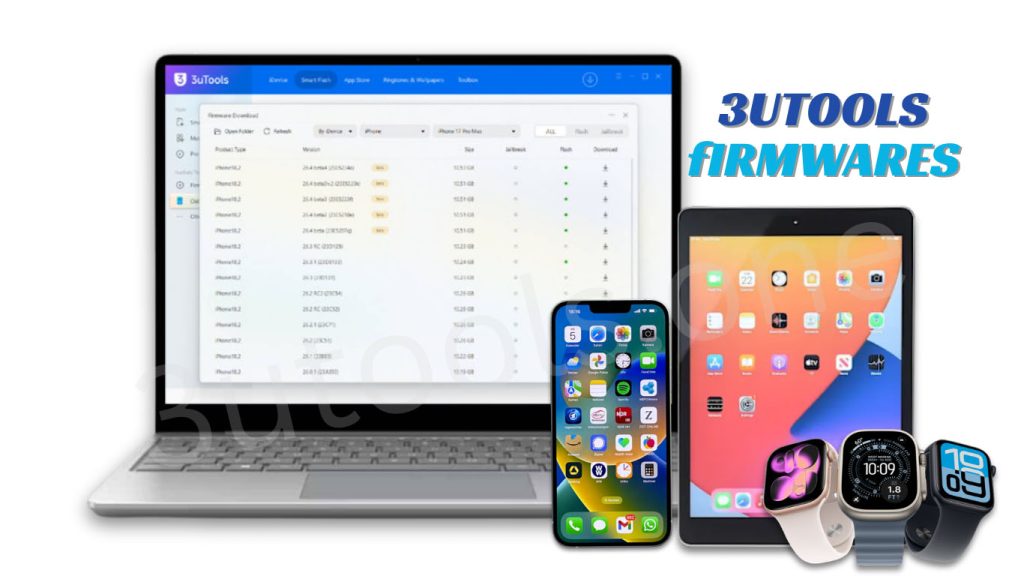
In this guide, you will learn what 3uTools firmware is, how it works with your iOS device, where to safely download official firmware files, and how to use them to flash or upgrade your iPhone, iPad, iPod Touch, or Apple Watch for free.
What are 3uTools Firmwares?
3uTools firmware refers to the official iOS system files used to install or restore the operating system on Apple mobile devices. These files, commonly known as IPSW firmware, contain the complete operating system (OS) required to run iPhone, iPad, iPod Touch and Apple Watch devices without any errors.
With 3uTools, users can easily:
- Download official Apple firmware files.
- Flash firmware to repair or update iPhone devices.
- Restore iOS devices stuck in recovery mode.
- Upgrade or downgrade supported iOS versions on your Apple device.
This makes 3uTools a popular and first choice for both beginners and advanced iOS users.
3uTools Firmwares Download for free
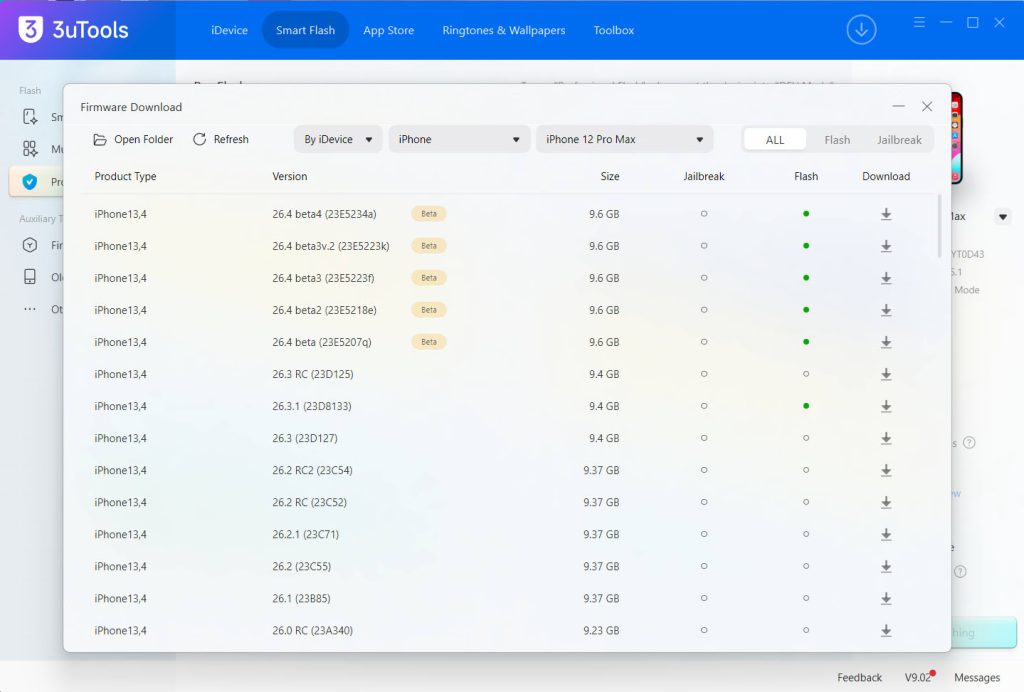
You can download verified, up-to-date firmware from the official 3uTeam library.
👉 Official firmware source:
This official page lists available, up-to-date firmware versions for any Apple device, including iPhone, iPad, and iPod Touch models.
Each firmware entry usually includes:
- Device compatibility
- iOS version number
- Firmware file size
- Release date
- Signing status
This information helps users safely choose the correct firmware for their device.
Why Use 3uTools Firmware Downloads?
Downloading firmware with 3uTools offers several advantages over manually searching for firmware.
Verified Official Files
- The files listed are official Apple iOS firmware packages.
Easy Device Matching
- 3uTools detects your iOS device model and suggests compatible firmware.
Faster Downloads
- The platform provides optimised download servers for firmware files.
Simplified Flashing Process
- After downloading, flash the firmware from the same interface.
Types of 3u Firmwares Available
3uTools typically provides two main categories of firmware: signed and unsigned versions, each with different usage possibilities and limitations.
Signed Firmwares
- Signed firmwares is Apple-approved and installs normally.
Unsigned Firmwares
- Unsigned firmware versions are older releases that Apple no longer allows to be installed via normal methods.
Use signed firmware unless you have a specific need for unsigned versions.
Supported Apple Devices
3uTools firmware downloads support many Apple devices, including
- iPhones,
- iPad models
- iPod Touch devices
- Apple Watches
The page lets users filter by model to find the correct files more easily.
| Support Devices | Support Series |
| iPhone | 17 to 3GS / 3G |
| iPad Pro | 13 (M5) to 10.5 |
| iPad Air | 13 (M3) to (1th) |
| iPad | 11 to 03 |
| iPad Mini | 07 to 01 |
| iPod Touch | 07 to 01 |
| Apple Watch | 11 to 03 |
| Apple Watch Ultra 2 | 03 to 01 |
| Apple Watch SE | 03 to 01 |
How to Download Firmware Using 3uTools
Follow these simple steps to download firmwares using 3uTools.
01 – Install the 3uTools app
- At first, 3uTools Download (the latest version) and Install it on your Windows, Mac, or Linux computer.
02 – Connect Your iPhone or iPad
- Connect your iOS device to your computer with a USB cable.
03 – Open the Flash and Jailbreak Tab
- Open the Flash and Jailbreak section in the app.
04 – Select Firmware
- Available, compatible firmware versions appear in the 3uTools app.
05 – Download Firmware
- Click Download next to your preferred firmware version.
The app automatically downloads the IPSW firmware file safely and for free.
Besides for firmware management, users can visit the 3uTools App Store to download apps, manage applications, and content on the computer.
How to Flash Firmwares with 3uTools
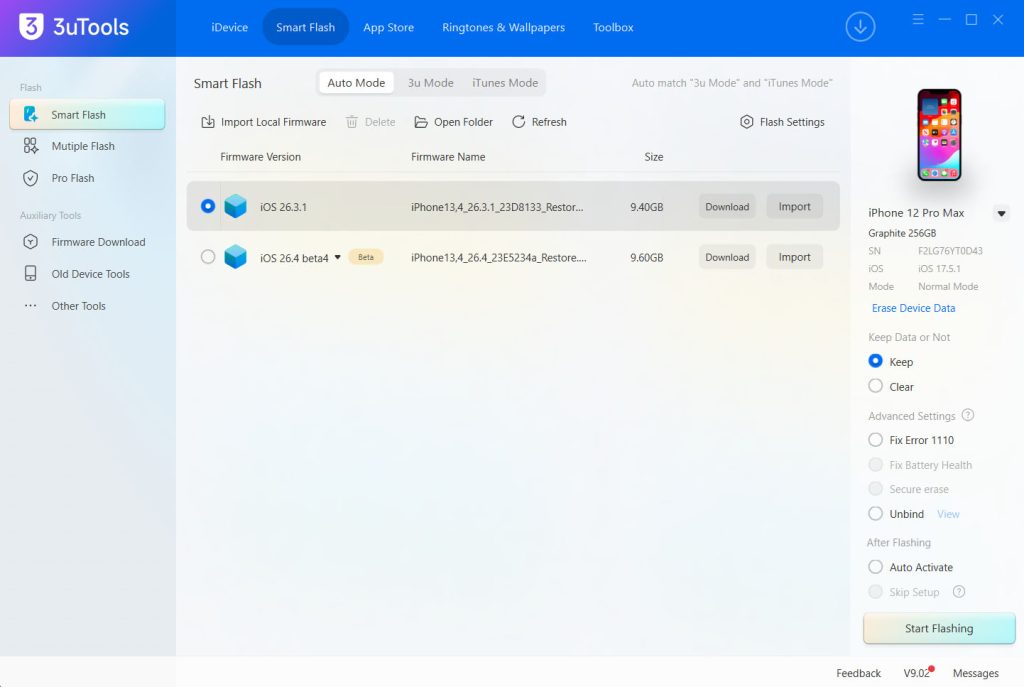
Once downloaded, flashing the iOS device is simple.
1. Open the Flash and Jailbreak Section
- Open the firmware flashing panel in 3uTools.
2. Select the already downloaded Firmware file
- Pick the firmware version you downloaded earlier.
3. Choose Flash Mode
3uTools offers different flashing modes, such as:
- Easy Flash
- Quick Flash
- Retain User Data Flash
4. Start Flashing
- Click Flash and let the process finish.
Your mobile device restarts automatically when the installation finishes.
Follow this guide for more information, including images.
Related 3uTools Guides
You might want to look at our other useful tutorials to make sure you get the most out of the 3uTools app. How to get the newest version of 3uTools for Windows and Mac OS X
3uTools Download for Windows – A step-by-step guide on how to download and install 3uTools on your Windows 7 to Windows 11 running PC so you can flash, back up files, and use a lot of utilities to manage your iPhone or iPad.
Download 3uTools for Linux – This guide shows you how to install and use 3uTools on Linux distributions such as Ubuntu or Fedora. deb or rpm packages and some simple command-line commands.
3uTools for Mac – The Ultimate Guide to allow Mac Users to Enjoy Without the 3uTools Feature. Check Out All the Ways You Can Control Your iOS Devices from a Mac Computer
The guide has all the information you need to set up 3uTools and enjoy full-featured device control, including jailbreaking and flashing.
Benefits of Using 3uTools for Firmware Management
Many users prefer the 3uTools application because it simplifies firmware operations that usually require complex tools.
All-in-One Device Management
- Users can manage apps, files, backups, and firmware from a single application.
Easy Firmware Download
- Enjoy a built-in firmware library.
Device Diagnostics
- View battery health, device status, and hardware details.
System Repair
- Flashing firmware fixes iOS issues like boot loops and software errors.
When Should You Use Firmware Flashing?
Firmware flashing is useful in many situations, such as
- Updating to the latest iOS version
- Fixing an iPhone / iPad stuck on the Apple logo
- Repairing software corruption
- Restoring factory settings
- Troubleshooting system errors
Always back up your important data before flashing firmware.
Is It Safe to Download Firmwares from the 3uTools app?
Yes. Firmware files provided through official sources are safe to use. These files are typically the same official iOS firmware packages released by Apple.
To stay safe:
- Download firmware from trusted sources.
- Verify device compatibility
- Avoid modified firmware packages.
- Using official firmware gives stable system performance.
Frequently Asked Questions (FAQs)
What is an IPSW firmware file?
An IPSW file is an Apple firmware package that contains the operating system used to install or restore iOS devices.
Can 3uTools downgrade iOS versions?
Downgrading is only possible if the firmware is still signed by Apple.
Does firmware flashing erase device data?
Some flashing modes erase data. Always back up your device before starting.
Can firmware fix system errors?
Yes. Reinstalling firmware can resolve many iOS software problems on your mobile device.
Is 3uTools free to use?
Yes. Most device management features are free.
Final Thoughts
3uTools provides a convenient way to manage iOS installations, whether updating, repairing, or restoring. The official firmware library and built-in tools help you safely maintain your iPhone or iPad without requiring any complicated steps.