3uTools Toolbox – Complete Guide to Powerful iPhone and iPad Management Tools
With the right tools in hand, managing an iPhone or iPad is far easier. Open 3uTools Toolbox for useful security tools to maintain, customize, repair, and organize your iPhone and iPad devices in one place. Rather than installing numerous applications for various functions, you can utilize many useful functions available directly within the 3uTools interface.
You can use it to back up important data, transfer files, create personalized ringtones, mirror the device screen, manage firmware, and fix common iOS issues with just a few clicks in seconds to minutes, while also providing options for more advanced users.
This guide explains what the 3uTools Toolbox is, provides an overview of its most useful features, covers when you should use which tool, and looks into how it can help simplify your everyday iPhone and iPad management tasks.
Download 3uTools Toolbox
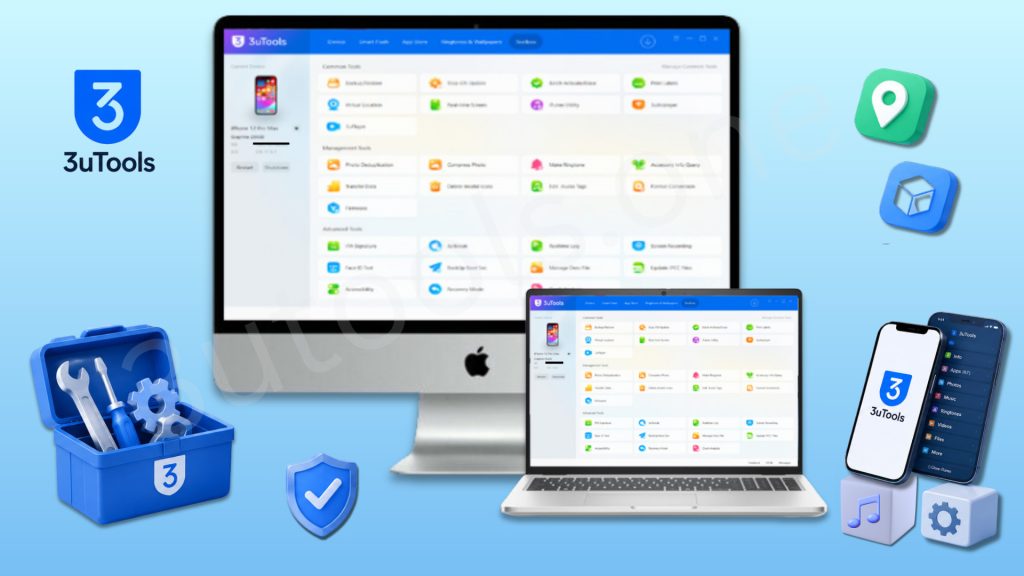
The Toolbox is included with the latest version of 3uTools. Install the application on your computer to access all available management tools.
You can also explore:
Mac users can manage iPhone and iPad devices, transfer files, organize media, and explore many useful Toolbox features with our complete setup guide.
Linux users can discover installation methods, supported distributions, and practical device management features designed for compatible systems.
iPhone and iPad owners can learn how to manage apps, games, backups, files, firmware, and many other powerful features available through 3uTools.
What is 3uTools Toolbox?
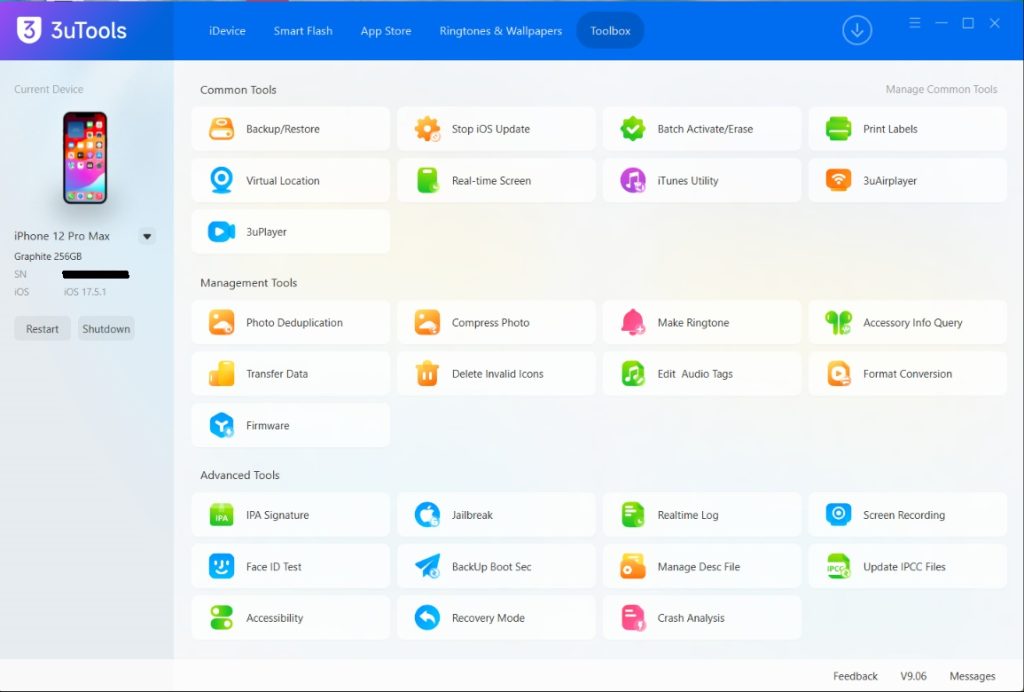
3uTools Toolbox is a comprehensive format of many built-in utilities that help to manage almost any aspect of an iPhone and iPad. The Toolbox bundles maintenance, backup, file management, troubleshooting, media creation, and firmware management together with some advanced iOS tools in a single workspace instead of being limited to simply doing one thing.
Each tool serves a particular task and allows users to accomplish daily tasks faster, without going through multiple applications. Whether for your device or others, the 3utools Tool box saves time with pragmatic features that help improve managing a device.
Why Use 3uTools Toolbox?
Suitable for iPhone users who only use 3uTools for flashing firmware or installing apps. Toolbox also brings in many main features to ease your day-to-day device management.
With the Toolbox, you can:
- Create and restore backups.
- Manage files and transfer data.
- Compress and organize photos.
- Create custom ringtones.
- Mirror your iPhone screen.
- Manage firmware.
- Test hardware features.
- Enter Recovery Mode.
- View device information.
- Troubleshoot common iOS issues.
- Access advanced maintenance tools.
Having everything in one application speeds up the process of managing your Apple device.
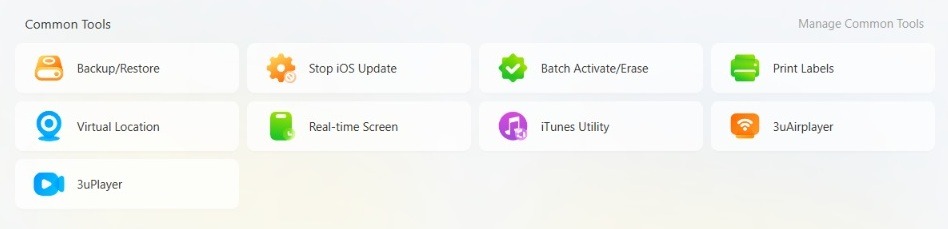
Common Tools
🔄 Backup and Restore
Backup and Restore is the most important feature of Toolbox. Calibration of Data: Taking regular backups secures your valuable photos, contacts, messages, and settings prior to performing an update or restoring a device. In case of any unexpected problem or if something goes wrong, you can easily recover your saved data without losing everything. If you’re new to this feature, follow our step-by-step guide on how to back up your iPhone using 3uTools to learn the complete process safely.
🛑 Stop iOS Update
At times, users prefer to wait and install a new version of iOS. It assists with controlling update notifications and gives greater control over the timing of the application of software updates.
♻️ Batch Activate / Erase
Batch Activate / Erase: With this feature, you can easily manage multiple Apple devices. This is especially useful for technicians, repair shops, and people who commonly set up or wipe many devices at once for setup or resale.
🏷️ Print Labels
The Print Labels feature assists in crafting a clear label for the identification of devices utilizing available device data. This may help you if you are managing multiple iPhones or iPads at once.
📍 Virtual Location
Virtual Location lets you simulate GPS locations for all the apps that support it and for testing purposes. Commonly used for the development of applications, location testing, demos, and any other supported scenario.
🖥️ Realtime Screen
Mirror your iPhone screen onto your computer in real time. The feature can be used for presentations, tutorials, troubleshooting purposes, remote assistance, and screen demonstrations. If you want to mirror your iPhone screen to your computer for presentations or troubleshooting, explore our complete 3uTools Realtime Screen guide for setup instructions and helpful tips.
🍎 iTunes Utility
The Toolbox contains valuable utilities that can plug in next to Apple components where necessary, while slightly reducing overhead to keep the devices full of useful features.
📡 3uAirPlayer
3uAirPlayer allows screen sharing between your Apple device and computer, an easier way to present and demonstrate wirelessly at your convenience.
▶️ 3uPlayer
Listen to playback through the built-in player, previewing some media types without exiting the app.
Management Tools
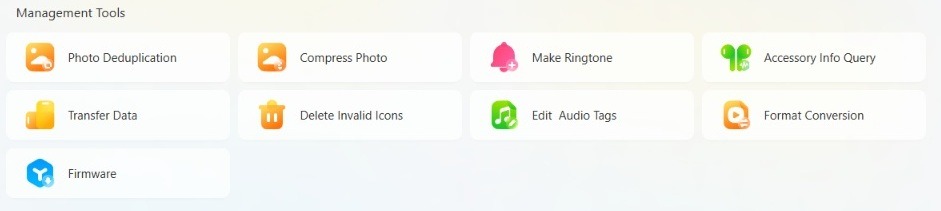
Management Tools is more geared towards keeping your data organized, moving between and customizing your iPhone or iPad without compromising the safety and accessibility of that data.
📸 Photo Deduplication
Search and delete similar photos to free up storage space and keep your photo library clean.
🗜️ Compress Photos
Keep your photo files small with good image quality. Storage management is easier.
🎵 Make Ringtone
Customize ringtones with music or sound files in your library without the need for additional software. For a complete walkthrough, visit our How to Create Custom Ringtones for iPhone guide and discover how to create personalized ringtones in just a few simple steps.
🔌 Accessory Info Query
Provides specifics of attached accessories and hardware support.
📂 Transfer Data
Transfer photos, videos, music, documents, and other supported files between your computer and iPhone quickly. Through the Transfer Data feature, transferring supported files and personal information between compatible devices in a few simple guided steps is easy. No matter if you are upgrading to a new iPhone or switching from Android, 3uTools makes transferring much easier and also keeps everything in place. Visit our How to Transfer Data Between iPhone and PC Using 3uTools article for a full step-by-step tutorial complete with screenshots, migration advice, and more.
🧹 Delete Invalid Icons
Remove broken or unused application icons to keep your Home Screen clean.
🏷️ Edit Audio Tags
Edit song titles, artists, albums, and music data straight from your own PC.
🔄 Format Conversion
The data you train on until October 2023, convert the supported media files into iPhone and iPad-friendly formats.
📦 Firmware
Download, install, and manage supported iOS versions safely with official firmware management tools.
Advanced Tools
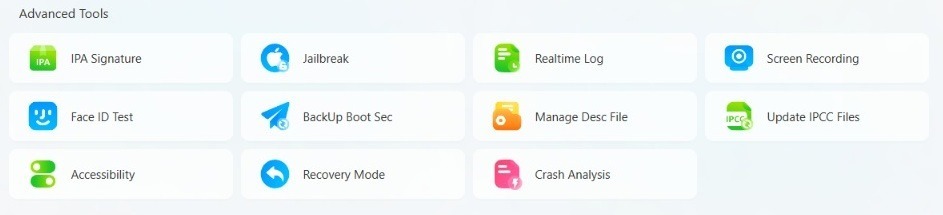
The Advanced Tools section, as the name suggests, includes powerful utilities for advanced users, technicians, and everyone in need of better control over iPhone and iPad management. These options assist in fault diagnosis, repairs, component swapping, and high-quality instructions under iOS while remaining within the 3uTools parameters.
✍️ IPA Signature
IPA Signature enables users to digitally sign compatible installation files, enabling the installation of IPA files onto any supported iOS device. It is useful when you are testing or deploying an application to make sure that it meets the necessary signing requirements.
🔓 Jailbreak
Quick Access to Compatible Jailbreak Utility and resources for supported iOS versions. This is what the new Jailbreak tool offers. Users are advised to check device compatibility, create a full backup, and be aware of the potential risks before going through with any jailbreaking procedure due to operating system modification.
📜 Realtime Log
Whenever your device is connected, Realtime Log shows system activity and diagnostic data. Developers and advanced users mostly use these logs to monitor events, analyze software behavior, and resolve unexpected issues during testing.
🎥 Screen Recording
The Screen Recording tool lets you record the iPhone or iPad screen on your computer. This tool helps for creating tutorials, including recording gameplay, demonstrations of applications, and software problems, or sharing instructional videos with others.
😊 Face ID Test
Use the Face ID Test utility to check whether the various components of Face ID on supported devices are functioning normally. It is useful diagnostic information that may help when troubleshooting authentication issues or verifying the hardware.
💽 Backup Boot Sec
Backup Boot Sec lets users make a copy of key boot-related information before attempting sophisticated maintenance activities. This backup can give extra protection, especially when doing supported repair or recovery processes.
📄 Manage Desc File
Manage Desc File enables users to organize and manage edited device description files that are used during certain maintenance and service operations. This point is mainly for advanced users and repair technicians.
📶 Update IPCC Files
Update IPCC files is a utility that helps to install supported carrier configuration files on eligible iPhone models. These updates can enhance network compatibility and allow devices to function properly on their mobile service providers’ networks.
♿ Accessibility
The accessibility tool provides one-tap access to Device Accessibility settings- functions from the respective pages. It allows users to quickly look through supported options that enhance usability for varied needs and preferences.
🛠️ Recovery Mode
Because normal start-up is not possible, Recovery Mode allows users to force it by entering recovery mode on supported iPhone and iPad devices. It can be most helpful for the firmware restoration process, as well as in situations when you have boot problems or attempt to recover software-related issues on an Apple device.
🐞 Crash Analysis
Crash Analysis parses crash reports from supported iOS devices and presents them for you. Analyzing these reports can also pinpoint application crashes, software conflicts or system instability and help comprehend the origin of current problems.
Why Advanced Tools Matter
Although most users might use 3uTools to download apps or flash firmware, the Advanced Tools role actually provides much more than basic device management. These utilities offer greater control over diagnostics, remediation, repairs, maintenance, and general system management; thus, 3uTools is a great solution for both average users and experienced technicians.
Whether you’re addressing a software issue, restoring a device for repair, testing apps, or utilizing advanced iOS capabilities, the Toolbox provides you with a range of tools and more through a single, intuitive interface.
Benefits of Using the 3uTools Toolbox
3uTools Toolbox is an all-in-one workspace that brings many handy iPhone and iPad management features together. Users can access backup tools, media management, and diagnostics for drives, screen utilities, firmware options, and additional maintenance features all from a single interface instead of having to toggle between various applications. This saves both time and makes everyday device management a lot simpler for you.
Whether you are new and trying out 3uTools for the first time or an old user who has many older Apple devices to maintain, Toolbox is capable of providing solutions to many of your day-to-day tasks.
3uTools Toolbox is an all-in-one workspace that brings many handy iPhone and iPad management features together. Users can access backup tools, media management, and diagnostics for drives, screen utilities, firmware options and additional maintenance features all from a single interface instead of having to toggle between various applications. This saves both time and makes everyday device management a lot simpler for you.
Whether you are new and trying out 3uTools for the first time or an old user who has many older Apple devices to maintain, Toolbox is capable of providing solutions to many of your day-to-day tasks.
All-in-One Device Management
The Toolbox only collects a multitude of useful utilities in one place. Users can do various tasks, from making backups, transferring files, managing firmware and testing the functionality of the device without having to install third-party software.
Easy to Use
Every option is well organised, allowing even the most inexperienced user to navigate easily. This interface is clean, making it easy for you to find the tool you’ll need and do whatever needs doing, all with great confidence.
Save Time and Improve Productivity
Toolbox is designed to be versatile; instead of opening multiple programs for various jobs, Toolbox allows you to manage backups, photos, media, screen recording, recovery tools and other utilities from one application. Such a workflow streamlines the process, enabling users to complete their work faster.
Better Device Maintenance
Maintaining your iPhone or iPad: Regular maintenance can keep your device running smoothly. There are features in the Toolbox which help users manage their storage, remove duplicate photos, manage firmware updates, run diagnostics and perform other maintenance tasks that enhance your experience with the device.
Helpful for Troubleshooting
On the other hand, the Toolbox equips you with useful tools that specifically target common software problems on iOS devices. Recovery Mode, Crash Analysis, Real-time Log and firmware management are some of the features that help engineers troubleshoot without having advanced technical knowledge.
Supports Everyday Personal and Professional Use
The Toolbox has a wide range of features that are useful in different situations, whether you manage the device yourself, assist family members or provide technical infrastructure. The extensive array of utilities is what allows it to be useful not only to home users but also professionals who work regularly with Apple hardware.
Regularly Updated Features
With each release of 3uTools, the Toolbox is being improved with more compatibility and features. You can update the software to use all new tools and support more recent iPhone, iPad, and iOS versions.
Safe and Organized Device Management
The Toolbox provides users to handle data management, backup and restore apps, manage device information, and do maintenance-related tasks in an organized environment. Back up anything important before doing this as a rule.
Why Many Users Choose the 3uTools Toolbox
The 3uTools Toolbox works with a variety of supported Apple devices, making it a useful solution for everyday iPhone and iPad management tasks. It supports features for compatible iOS devices, whether you want to back up important data, transfer files, manage firmware, create custom ringtones, or use advanced maintenance tools.
Supported Devices
The 3uTools Toolbox works with a variety of supported Apple devices, making it one solution for your everyday iPhone and iPad management tasks. The Toolbox allows you to support a variety of features for compatible iOS devices, whether you want to back up important data, transfer files, manage firmware, create custom ringtones or use advanced maintenance tools.
As 3uTools continues to receive updates, support is expanded to work with newer Apple hardware and iOS versions whenever possible. Keeping your software updated helps ensure the best compatibility and access to the latest Toolbox features.
The toolbox is typically used for:
- iPhone models
- iPad models
- iPod touch devices
The sample of availability in the iOS board above will differ according to your device model, your iOS version or which tool you actually need to utilize. Certain advanced utilities need supported hardware or specific system conditions to operate properly.
To ensure you have the best user experience, please always install the most recent version of 3uTools and make sure to connect to a stable USB when managing Apple devices.
Tips Before Using the 3uTools Toolbox
3uTools Toolbox which incorporates a lot of nice features that can enhance the management of your iPhone and iPad. It’s advisable to follow some basic recommendations before using advanced tools, as this way you protect your data and have a smoother sailing. Taking a few minutes to get your device ready protects against top-class potential issues and results in every Toolbox feature receiving the best possible experience.
Create a Backup First
Make a full backup of your files before upgrading the firmware, maintenance or advanced operations. You can restore photos, contacts, messages and other private data if you have a recent backup.
Install the Latest Version of 3uTools
The latest version gives the tools and features in Toolbox that are compatible, bug fix and support newer iPhones, iPads, and iOS versions.
Use a Reliable USB Cable
You need to have a consistent connection while transferring files, creating backups, and flashing firmware. Using a decent quality or authentic USB cable reduces connection problems and enhances overall performance.
Check Device Compatibility
Certain Toolbox features are only available on select iPhone models or iOS versions. Make sure that your device has support for the feature you are trying to use before utilizing advanced utilities.
Keep Enough Free Storage
Multiple Toolbox features, including backups, media transfers, and screen recording, need storage space on both your device and computer. Clearing out all of that junk before you begin saving yourself a lot of potential disruptions down the line.
Read Feature Instructions Carefully
All the Toolbox utilities have a unique purpose. This allows you to use the correct tool and decreases the likelihood of accidentally affecting your device by knowing what each feature does before using it.
Keep Your Computer Updated
The better your Windows, Mac or Linux runs, the better 3uTools will perform. Updates are more than just bug fixes (though there are always some); installing the updates means having the latest drivers and often improving device detection and general stability.
Use Trusted Downloads
Only download 3uTools or associated files from trusted sources. Downloading from official or trustworthy download pages should always guarantee that you will receive the original software and the latest updates.
Get the Best Experience with 3uTools Toolbox
If you do follow these steps, your experience using 3uTools Toolbox is likely to be a smoother and more reliable one. Whether you need to back up your iPhone, transfer files, make ringtones, or use advanced maintenance tools, a little preparation will save your time and protect the quality of your data at yours and take full advantage of what the Toolbox can do.
Related 3uTools Guides

3utools Toolbox works along with many other functions of 3utools software. If you want more ways to manage your iPhone or iPad, you can find all these guides cover full tutorials, how-tos, and installation and usage tips from the software that helps you get even more of it.
3uTools Download
New to 3uTools? Install the latest version first with our step-by-step installation guide, and the Toolbox will be available, including your device management features.
3uTools for Windows
The Toolbox serves its entire purpose on Windows systems. Check our 3uTools for Windows tutorial to learn how to install, System requirements, versions supported, download, and more.
3uTools App Store
Control more than your device settings. With the 3uTools App Store, you can easily search for, install and organize iPhone and iPad applications right from your desktop computer to make day-to-day app management much more convenient.
3uTools Games
If you like to play games on iPhone or iPad, check our 3uTools Games guide to know how you’d be able to browse, organize, and manage compatible games while keeping a clean and well-organized gaming library.
3uTools Firmwares
One of the most powerful aspects you can do in 3uTools is firmware management. We describe how to download official firmware, update supported devices and restore iOS safely with our complete 3uTools Firmwares guide.
How to Backup iPhone Using 3uTools
Backing up your important data regularly is one of the best things that you can do. Before making any significant system changes, follow our full backup guide to know how to safely back up or restore your iPhone.
How to Create Custom Ringtones for iPhone
Toolbox also has a ringtone maker that allows you to set custom sounds on your phone. With this guide, we will show you how to create and transfer ringtones.
Frequently Asked Questions (FAQs)
What is the 3uTools Toolbox?
3uTools Toolbox, originating from developed one-stop management software, is a suite of built-in utilities that help you maintain your iPhone and iPad with tools integrated to manage, maintain, and troubleshoot. It has a backup utility, file transfer tool, firmware tool, screen recording features, ringtone maker, diagnostics, and tons of other useful tools.
Is the 3uTools Toolbox free to use?
Yes. The Toolbox is included with the free 3uTools. A lot of these core features (such as registering devices, conducting software updates, and restoring) come at no extra cost, which allows you to manage your Apple devices from one single application.
Which devices are supported by the 3uTools Toolbox?
The Toolbox is compatible with most iPhone, iPad, and iPod touch models. Availability of individual features varies by device and iOS version, and may be supported only in the specific tool being used.
Can I back up my iPhone using the 3uTools Toolbox?
Yes. When you back up, you save important data before updating or restoring your device; this is one of the features in the Toolbox. It may also help to regularly back up your data to protect personal information.
Does the 3uTools Toolbox help manage apps and games?
Yes. The Toolbox is dedicated to device management but works in conjunction with the 3uTools App Store and respective Games features, providing users with an organized overview and better application management as well as installed games and overall iOS experience.
Can I create custom ringtones with the 3uTools Toolbox?
Yes. Among the features in Toolbox is ringtone creation that lets users create custom ringtones based on supported audio files and transfer them to compatible iPhones.
Is the 3uTools Toolbox safe to use?
When acquired from trusted sources and used suitably, 3uTools Toolbox achieves convenience in managing iPhones or iPads. It is always recommended to create a backup before using these advanced features.
Can the Toolbox help fix common iPhone problems?
Yes. There are also Toolbox features to troubleshoot common software problems. Diagnostic utilities like Recovery Mode, Crash Analysis utility, Built-in firmware management, and Realtime Log can help users fix most device issues.
Do I need an internet connection to use the Toolbox?
After you install 3uTools, some of the Toolbox applications can work without a network; however, some others need to connect to the Internet (for example: downloading firmware and checking for updates).
Why should I use the 3uTools Toolbox instead of multiple separate applications?
For iPhone management with a zillion useful features, Toolbox would indeed be the best choice as it integrates everything into one easy-to-use interface. Rather than installing multiple applications to do backups, media management, firmware updates, diagnostics, and maintenance, much of what we use a Desktop for these days can be done via one application.
Final Thoughts
The 3uTools Toolbox is more than just a tool; it is an iPhone and iPad management center designed to make your daily tasks easier while giving you greater control over your Apple devices. The Toolbox contains many useful tools collected in one application, from secure backups and transferring files to managing firmware, customizing ringtones, recording your screen, and using advanced maintenance tools.
Whether you need to set up a new iPhone, keep working with your existing devices, or fix some software problems that occur on your device, Toolbox can help you achieve everything faster without needing tools from several different programs. Sleek UI makes it easy for users at the beginning, and all the advanced utilities are very important for professionals as well as technician experts.
For optimal performance, it is recommended to always use the updated version of 3uTools, back up before performing major operations, and experience all Toolbox features. Regardless, the Toolbox has always been used to manage any iPhone and iPad devices that support 3uTools; the new edition of 3uTools has continually been presenting improvements and new functions.
You can read the full guides on 3uTools Download, 3uTools App Store, 3uTools Games, 3uTools Firmwares, and 3uTools for iOS. If you want to learn more, check out these guides that include new features of the application along with useful tutorials and tips to improve daily use of your Apple devices.